
How to Install Google Tag Manager Properly (Without Breaking Your Cookie Banner)

To install Google Tag Manager without losing analytics data or breaching UK GDPR, deploy a single GTM container snippet in your site header, remove all hardcoded legacy Google tags, and enable Google Consent Mode v2 via a certified Consent Management Platform like CookieYes so tags fire dynamically based on user consent.

Craig Hall - Senior Web Developer & Conversion Strategist
By Craig Hall • Senior Developer & Conversion Strategist
How to Install Google Tag Manager Properly (Without Breaking Your Cookie Banner)
Kellow Woodcraft • +45% Clicks & +600% Content Lift Service Hub: Website Tracking & Attribution Pillar ↗
The Problem We Are Solving

You installed a cookie banner to stay legal, and suddenly your Google Analytics traffic dropped by 60%—or your Google Ads stopped seeing form conversions.

The Outcome: A clean, single-container Google Tag Manager setup wired to Google Consent Mode v2 that stays 100% UK GDPR compliant while preserving conversion modelling.

Step 01 of 04

Strip Out Duplicate Hardcoded Scripts & Old Plugins

Before pasting a single line of Google Tag Manager code, check your website source code for leftover Google Analytics plugins (like MonsterInsights, Site Kit, or old theme header scripts). If you run GTM alongside an old GA4 plugin, every pageview and enquiry gets counted twice.

Tag Assistant • Legacy Tag Conflict Check
01
Remove Hardcoded G-XXXXXXX Script

Delete any standalone <script async src="https://www.googletagmanager.com/gtag/js"> blocks from header.php or theme.liquid.

02
Keep Only GTM-XXXXXXX Container

Every tag (GA4, Google Ads, Microsoft Clarity, Meta Pixel) now lives inside one lightweight GTM container.

Why this matters: Duplicate tags skew your conversion rate and corrupt Google Ads bidding signals. One clean GTM container should control every tracking pixel on your site.

Step 02 of 04

Place the <head> and <body> Container Snippets Correctly

In your Google Tag Manager workspace, click your GTM-XXXXXXX ID at the top right. Paste the first script block as high in your site <head> as possible (right after the opening <head> tag, before external stylesheets), and paste the <noscript> iframe immediately after the opening <body> tag.

Theme Header • GTM Container Injection
01
High <head> Placement (Async Execution)

Loads asynchronously without blocking Largest Contentful Paint (LCP) [4].

02
Initialize window.dataLayer First

Always declare window.dataLayer = window.dataLayer || []; above the container so page metadata is ready before GTM boots.

Why this matters: Placing GTM at the bottom of the footer delays tag initialization. If a mobile visitor taps your phone number within 2 seconds of landing, a slow-loading footer script misses the lead completely.

Step 04 of 04
STAGE 1 BASELINE • 4 CORE TAGS

Verify Your Signals & Stage 1 Enquiry Tags in GTM

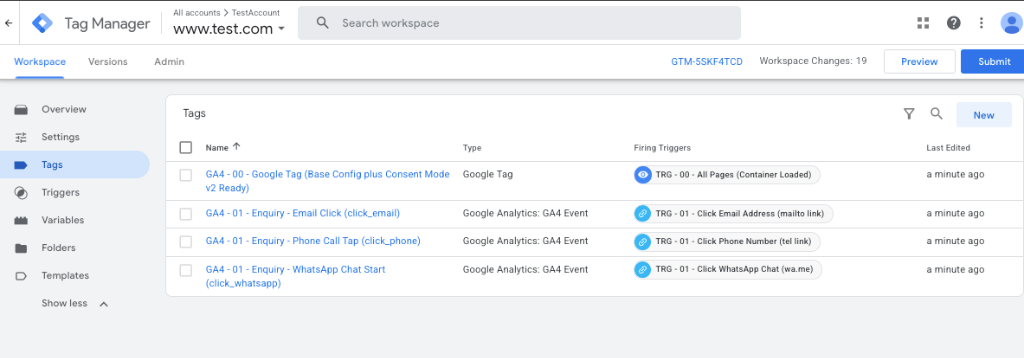
Click "Preview" in the top right of Google Tag Manager and enter your website URL. Once your base Google Tag (GA4 - 00) and Consent Mode v2 are verified, your clean Stage 1 workspace should include your baseline phone tap (tel:), WhatsApp (wa.me), and email (mailto:) tags.

GTM Workspace • Stage 1 Clean Foundation (4 Tags)
Stage 1 GTM Workspace: Base Google Tag + Email, Phone & WhatsApp Enquiry Tags.

Stage 1 GTM Workspace: Base Google Tag + Email, Phone & WhatsApp Enquiry Tags.

GA4 - 00 - Google Tag (Base Config + Consent Mode v2)GA4 - 01 - Enquiry - Email Click (click_email)GA4 - 01 - Enquiry - Phone Call Tap (click_phone)GA4 - 01 - Enquiry - WhatsApp Chat Start (click_whatsapp)
01
Consent Tab: Default vs. Updated State

ad_storage, analytics_storage, ad_user_data, and ad_personalization all show green Granted status after banner interaction.

02
Zero Duplicate Google Tags Fired

Confirm your Google Tag (G-XXXXXXX) fires exactly 1 time on Container Loaded alongside your 3 core enquiry triggers.

Why this matters: Never publish a GTM container blind. Verifying your Stage 1 foundation ensures that every baseline pageview and direct contact click fires once per event without duplicate tags.

Common Questions & Quick Answers

No—when installed properly, a single asynchronous GTM container actually speeds up your site compared to running multiple separate analytics, Meta Pixel, and heatmap plugins. We defer non-essential marketing tags until after the main content paints (LCP) so your Core Web Vitals stay green.
SKIP THE TAG MANAGER HEADACHE • £97 Fixed • 48h Turnaround

Want Craig to Wire Up Your GTM & Cookie Banner Properly?

Stop wrestling with triggers and Consent Mode v2 warnings. I will audit your current container, strip out duplicate tags, and wire up rock-solid enquiry tracking within 48 hours.